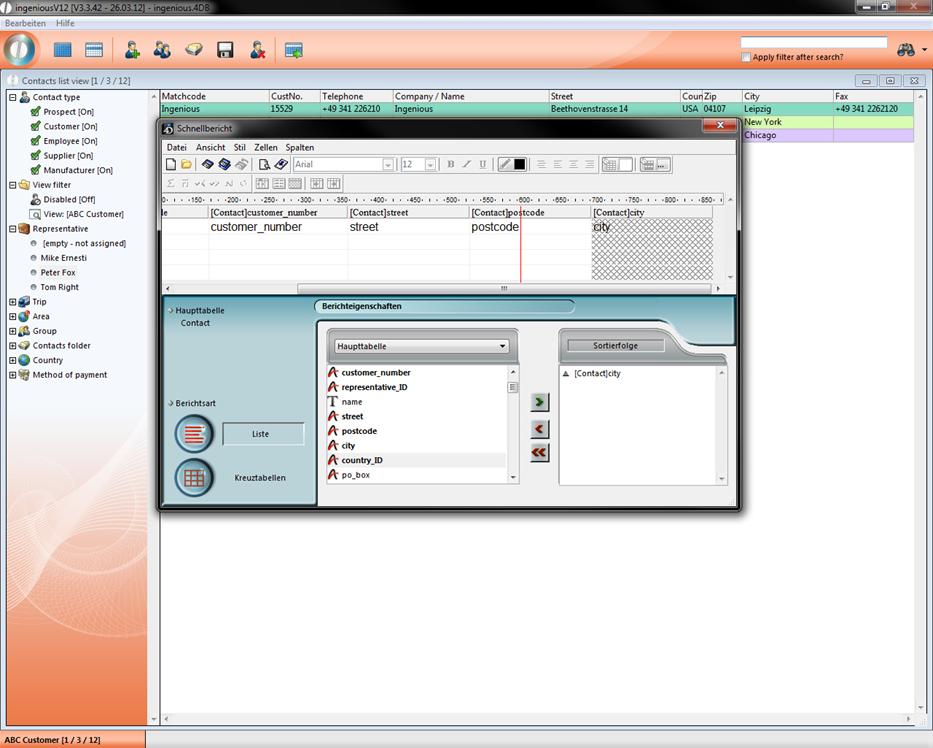
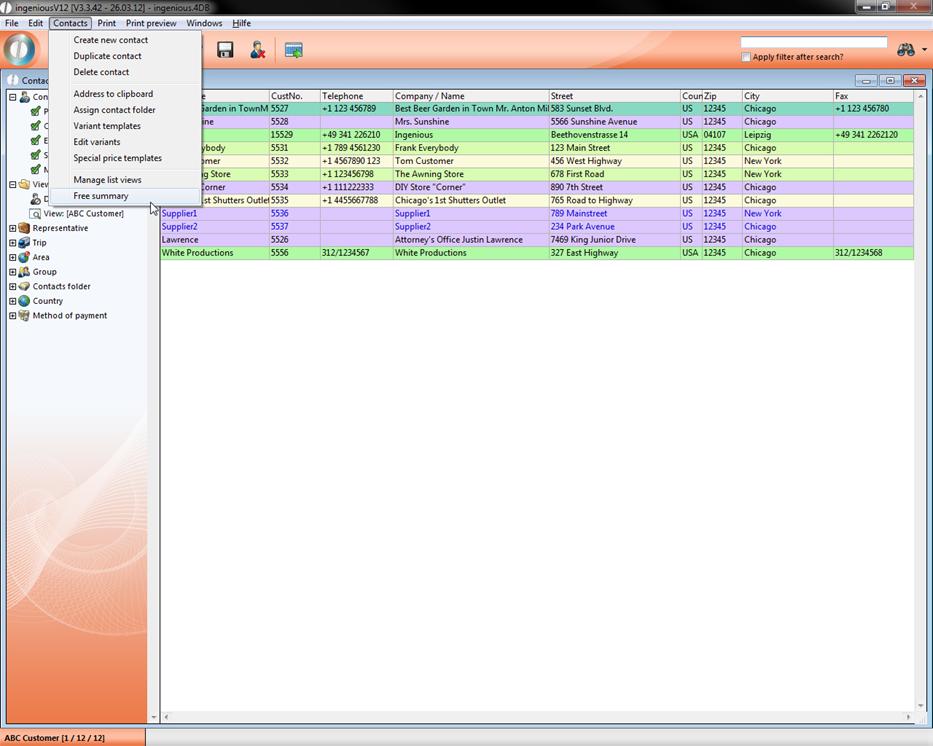
In order to also use your data from Ingenious.V12 in other applications, Ingenious.V12 provides you the easy export function “Free summary” (used partly also under the term ASCII Export is used, i.e. in the user administration). You will find this function under the menu option “Contacts/Free summary”.
The so-called Quick Report that consists of three main areas, opens.
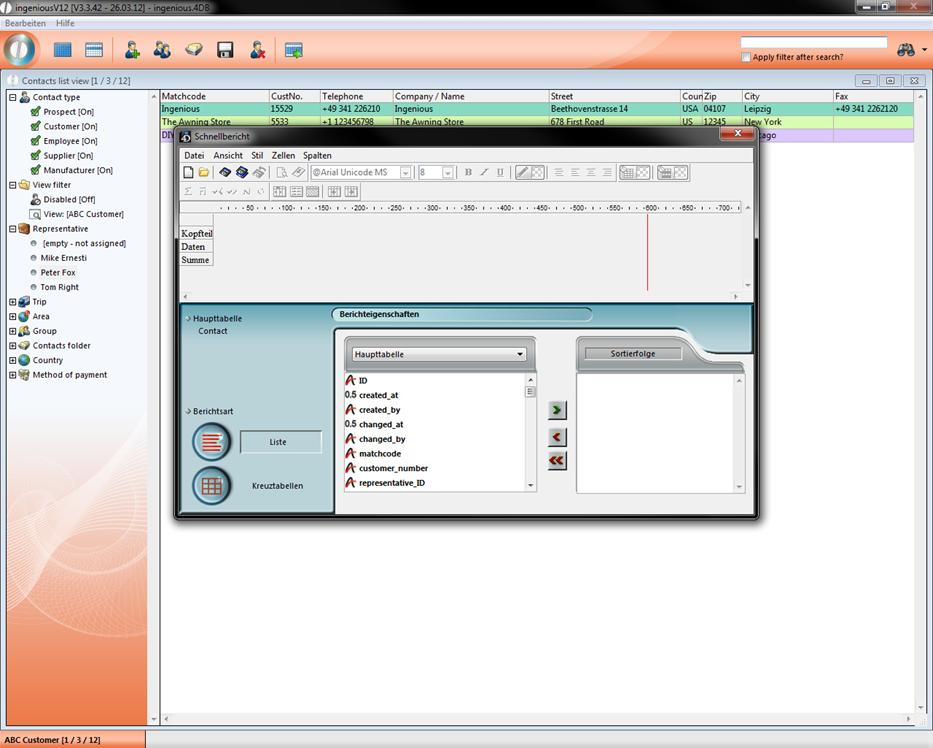
View of the export function
Note:
A) Everything that is found in the selection area can be exported.
B) Everything that is found in the export area will be exported.
C) In the sorting area, one can possibly also sort the date to be exported.
Practice with the free summary
In this exercise, all records from the contact folder “New York” should be exported in the Microsoft Excel program. In addition, you should sort the export according to the postal code.
1. Click on the contact folder “New York” to open the records that are to be exported.
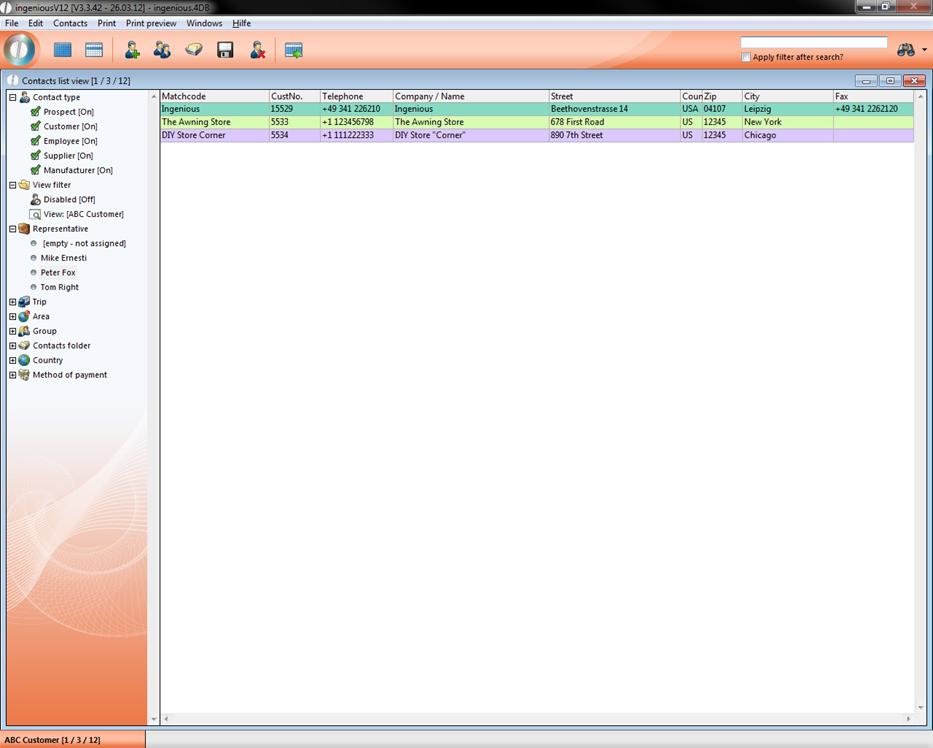
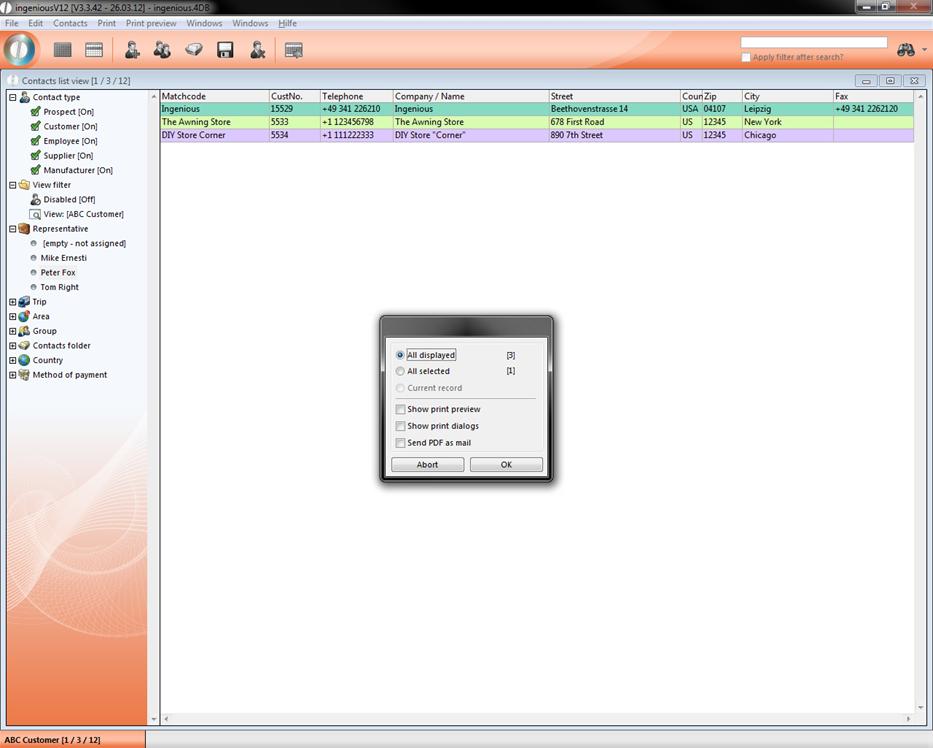
2. In the main menu, select the entry “Contacts/Free summary”. In the print dialog window that appears, select the option “All selected” and confirm this with the “OK” button.
3. In the Quick Report window, you transfer the fields “Matchcode “, “Customer number “, “Street”, “Postcode” and “City” from the selection range into the export range. In addition, you have two possibilities. Either you double-click on the corresponding fields or you drag the fields with the mouse (called Drag & Drop) from the selection range into the export range!
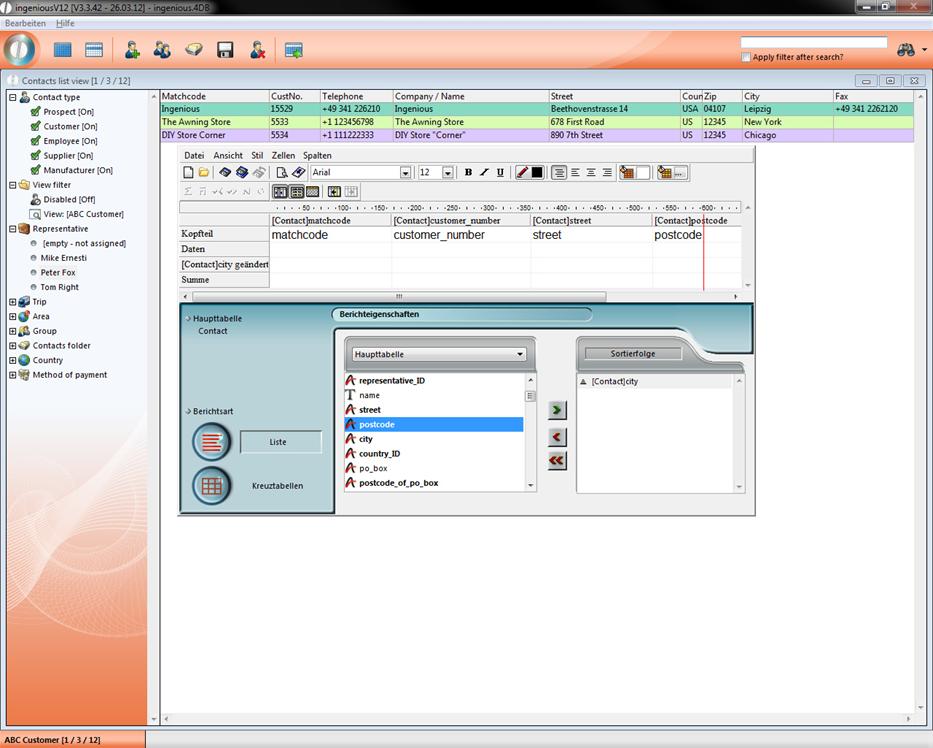
4. Sort your export according to street. Either drag the field “city” with the Drag & Drop in the sort area. or mark the field and then click on the  button to transfer to the next field.
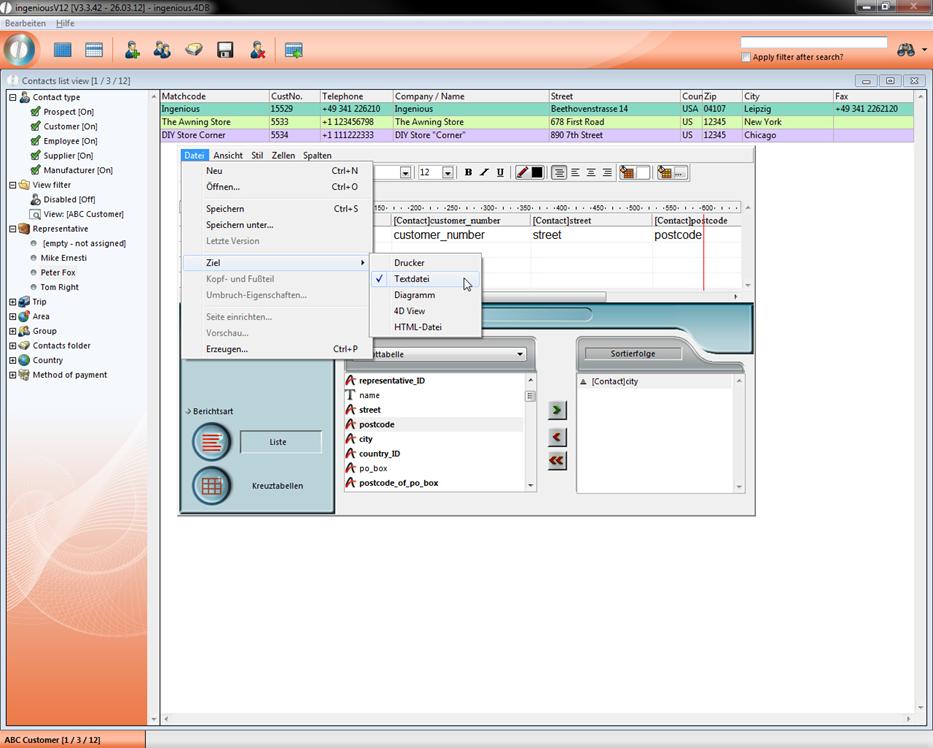
5. Select the entry “File/Target/Text document” in the menu.
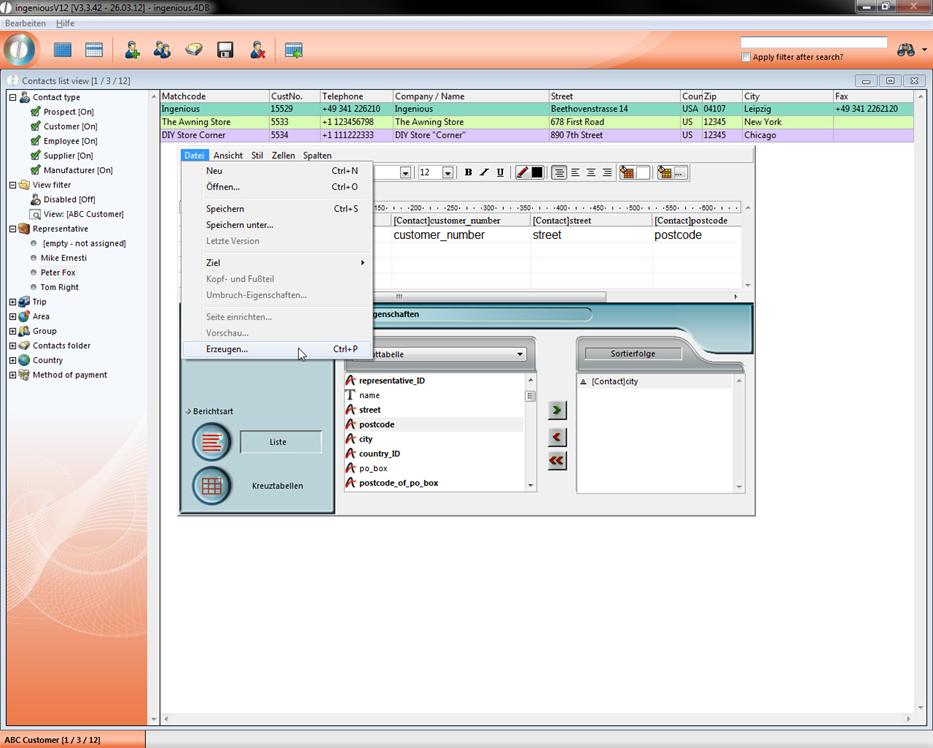
6. In the menu, select the entry “Data/Generate.”
7. A standard dialog from Windows appears for saving data. Select a path and enter “Export1”.
8. After you have saved the data and if you don’t wish to export anything else, then you can close the Quick Report.
9. Then start the program “Microsoft Excel” on your PC and select the menu option “File/Open”.
10. A Windows standard window will appear to open the data. Search for the file that was just exported “Export1.txt” and open it.
11. The “Text-Conversion Assistant” in Excel will appear.
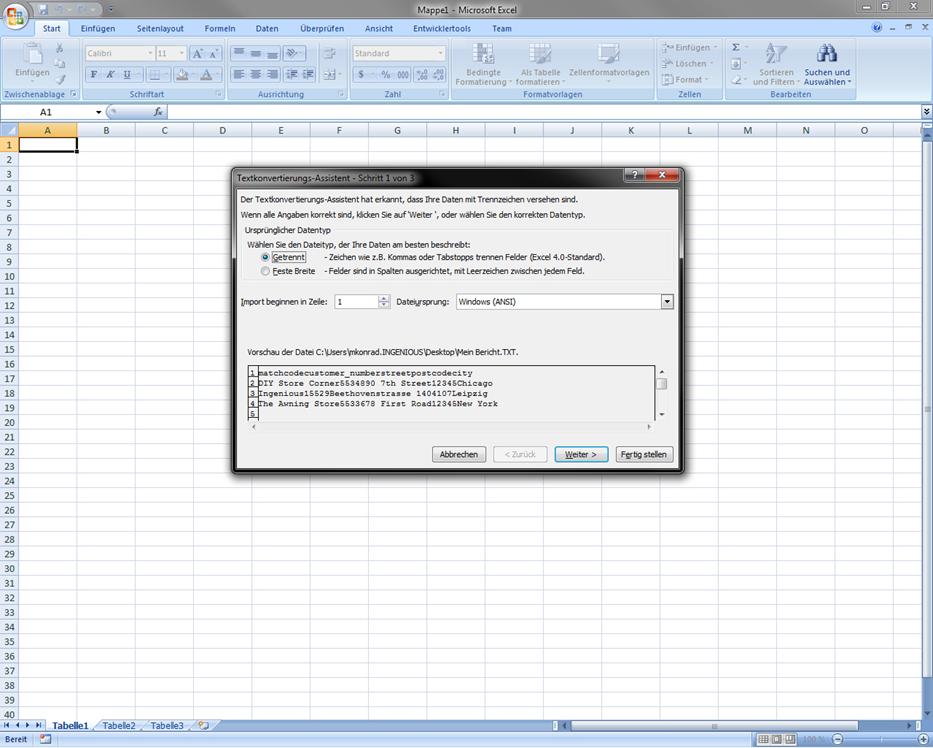
12. Leave the standard settings the way they are and click on the button, “Finish”.
Your excel spreadsheet will look like the following.
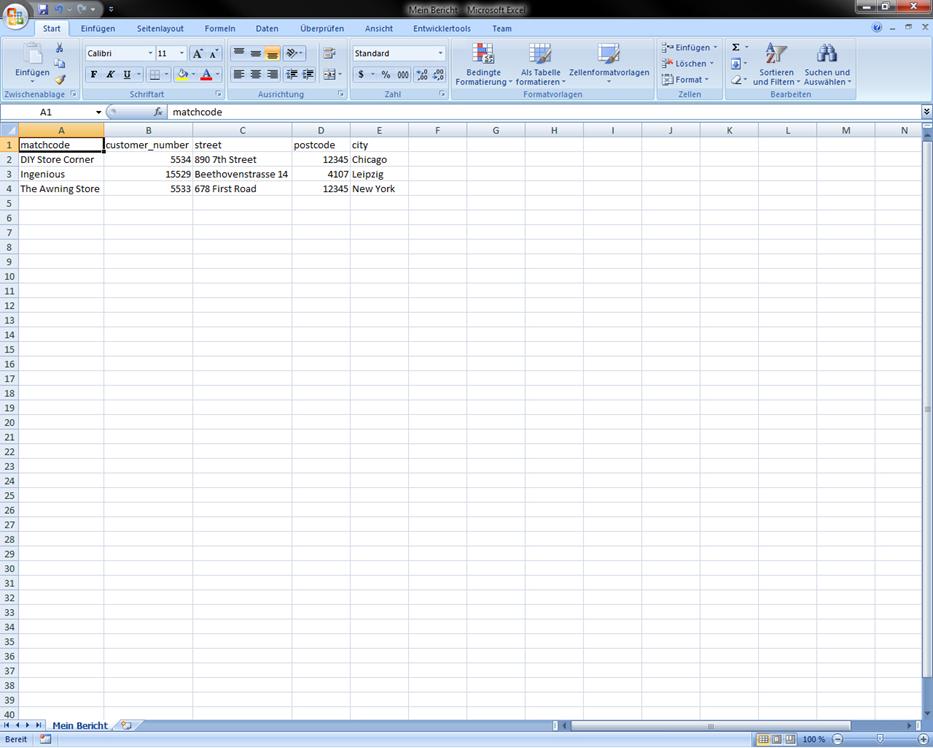
As you can see, the selected records are listed among each other, with the respective column designation in the top row. All are sorted in ascending order according to the street. With the help of the text file (*.txt) you can import your data without problems into every other program, in order to further process it. Of course the function “Free summary” quotations you even more. With this you can even sort your export according to hidden or invisible fields.
In order to do this, you must hide only the field, which is not to emerge afterwards in the exported file. This happens within the export range. With a right click on your mouse, simply click on the appropriate field and select the entry “Hide” from the context menu that now appears. As an identifying feature, the field is covered now with a grey diamond grid. In the exported file, the hidden field no longer appears, but will still be sorted afterward.
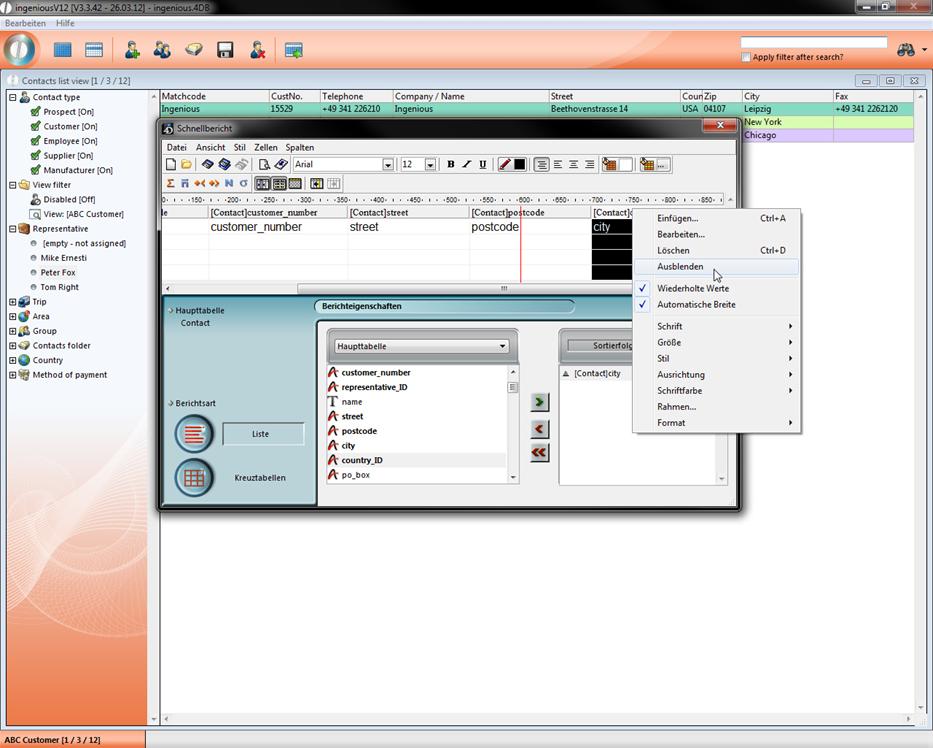
In the export function you can also determine whether data should be sorted in ascending or descending order. In order to do this, it is sufficient to click in the sort area on the triangle next to the field in according to which the data is to be sorted.